Why iPhone Videos Get Pixelated
iPhone cameras capture sharp, high-bitrate video, but that quality rarely survives the journey to another device. Pixelation appears when detail is thrown away during compression and the gaps are filled with visible square blocks.
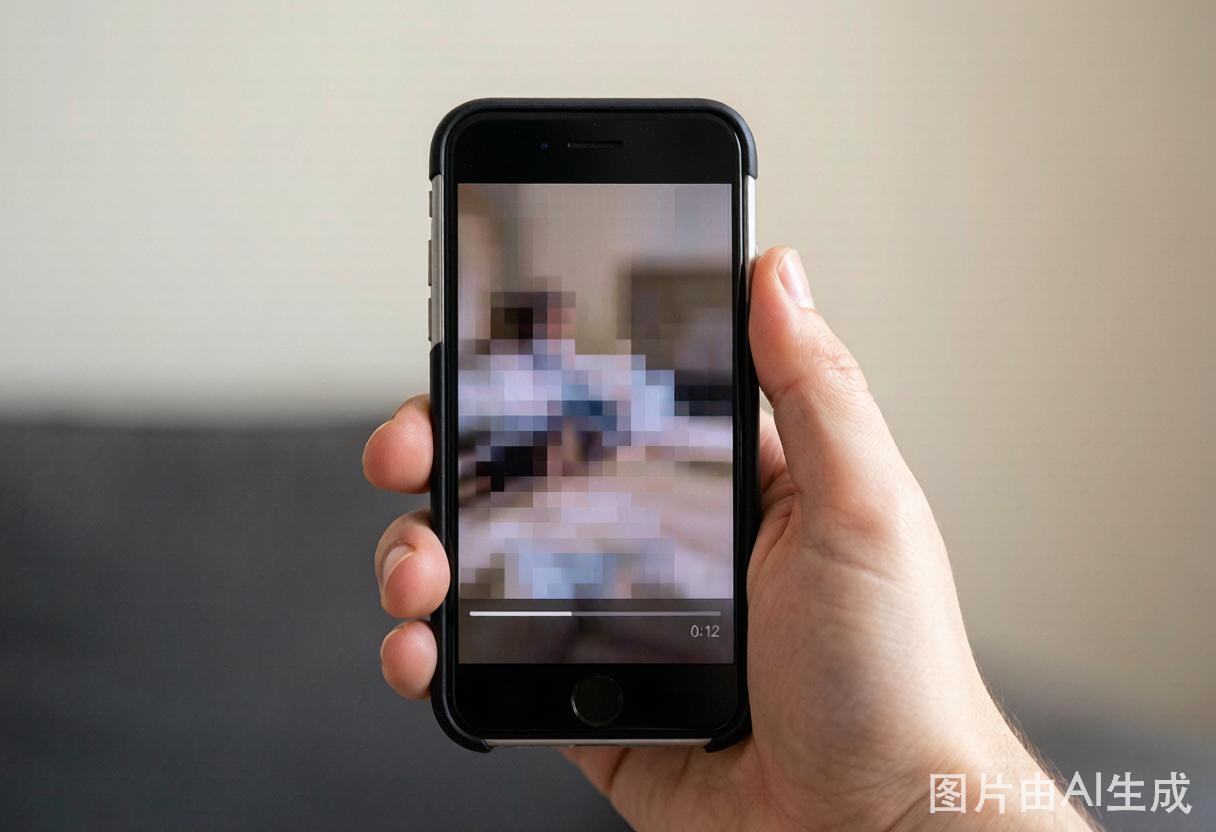
Compression in Messages and Mail
When you send a video through Messages or Mail, iOS often re-encodes it at a lower resolution and bitrate to keep the file small. The recipient receives a blocky version, and if they forward it again, the quality drops another step.
Low-Light and Low-Resolution Recording
Recording in dim light forces the sensor to raise ISO, which adds noise, while 720p or 1080p limited frame-rate modes capture less detail to begin with. On a large screen, that softness reads as pixelation.
Repeated Sharing and Re-Encoding
Every round trip through a social app, editor, or cloud service re-compresses the file. After several passes the block artifacts become baked into the footage.
Can You Fix a Pixelated iPhone Video?
In most cases, yes. Pixelation is missing detail rather than corrupted data, and AI repair can reconstruct a convincing version of what was lost. Lightly compressed clips clean up almost perfectly; heavily blocky ones improve dramatically, though they may not reach a pristine master.
Good news: if you can still tell what the footage shows, PixelFix can almost always make it cleaner, sharper, and more watchable.
How to Fix Pixelated Video on iPhone
Repairing a pixelated iPhone clip takes three steps and no editing experience.
Step 1 — Transfer and Upload the Clip
AirDrop or cable-transfer the clip to any computer, or open PixelFix in your phone browser and upload it directly. iPhone MP4 and MOV files are supported without pre-converting, so there is nothing to prepare first.
Step 2 — Choose Repair Settings
For footage that is blocky from messaging compression, enable strong deblocking and moderate sharpening. For soft low-light clips, enable noise reduction and a gentle upscale so the result looks natural rather than artificially crisp.
Step 3 — Preview and Save
Use the before/after slider to check the clean-up, then export in 1080p or 2K with no watermark. Previewing is free, and you only use credits when you download the full-resolution file.
Best Repair Settings for iPhone Footage
Matching the settings to the cause of the pixelation gives the cleanest result.
For Messaging-App Blockiness
Set deblocking to high and artifact removal on. The blocks come from aggressive compression, so targeting them directly recovers the most detail. Keep sharpening moderate to avoid introducing halo edges.
For Low-Light Clips
Turn on noise reduction and a 1080p upscale. Over-sharpening noisy footage makes the grain worse, so a balanced setting looks better than an aggressive one.
For Already-Shared, Multi-Pass Clips
Use the strongest deblocking and a 2K upscale. These clips have lost the most detail, and a higher output resolution hides residual softness better than 1080p.
How to Avoid Pixelation When Recording
A little prevention saves a repair later. Record at 1080p or 4K with a normal frame rate, keep the lens clean, and send large clips over AirDrop or a cloud link instead of Messages so the original bitrate is preserved. If you must share by message, send the file as a document attachment when the app allows it, which skips re-encoding.
When a clip is already blocky, jump to the repair tool below. For broader causes and settings across all footage types, see the complete pixelated video guide.
Frequently Asked Questions
Yes. You can upload the file to PixelFix directly from your phone browser or from a computer after transferring it. The repair runs on the file, not on the device, so any saved clip can be improved.
AirDrop sends the original file with no compression, so quality is preserved. The pixelation usually comes from Messages, Mail, or third-party apps that re-encode clips to save space before sending.
No. Your source clip is never modified. PixelFix produces a new, repaired copy that you download alongside the original, so you keep both versions.
It reduces noise and rebuilds a useful amount of detail in low-light clips, though very dark or badly out-of-focus footage has natural limits. Stronger results come from clips where the subject is at least recognizable.
Ready to Repair Your Footage?
Upload your pixelated video and watch the AI reconstruct it frame by frame. Free to preview, watermark-free on every export.
Start Fixing for Free