What Does Depixelate Mean?
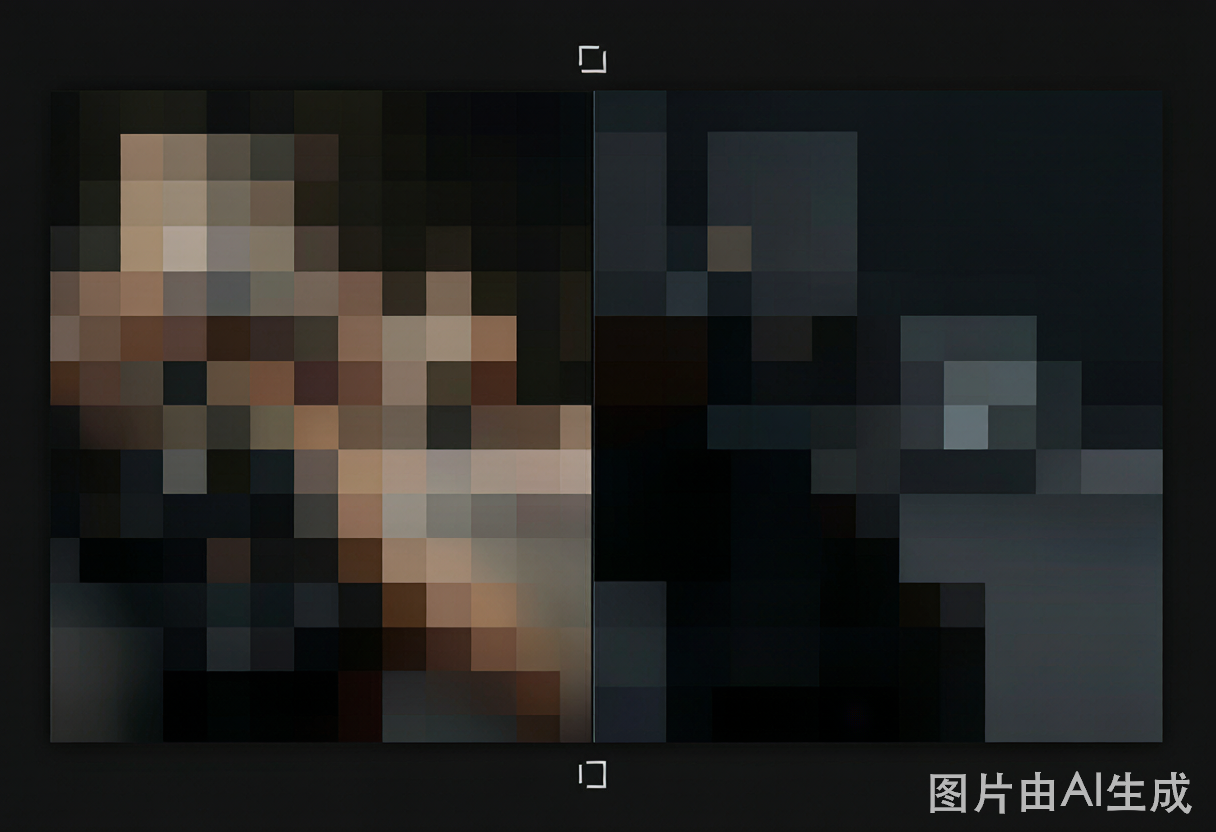
To depixelate a video means to reverse the blocky, mosaic-like artifacts that appear when detail is lost. Instead of leaving hard squares, depixelation estimates the original pixels underneath and rebuilds smooth edges, texture, and gradients. The result is a frame that looks like a clean capture rather than a compressed one.
Why Video Gets Pixelated
Pixelation is a symptom of lost information. The encoder divides the frame into blocks and, when the bitrate is too low, approximates whole blocks instead of storing fine detail. Repeated compression, low-resolution captures, and aggressive platform compression all produce the same blocky effect.
Low Bitrate and Compression
When there are not enough bits to describe the picture, smooth regions collapse into flat blocks. This is the most common cause and the easiest to improve.
Repeated Transcoding
Each re-encode discards more detail. A clip shared through several apps arrives with stacked compression, making the blocks deeper and harder-edged.
Native Low Resolution
Old camcorders and early digital footage were captured soft. Viewed on a large screen, that softness reads as pixelation even without heavy compression.
How to Depixelate a Video Step by Step
Depixelating with PixelFix is a three-step process that needs no manual editing.
Step 1 — Upload the Blocked Clip
Drag and drop or select your file. MP4, MOV, AVI, MKV, WebM, and WMV are supported, so there is no need to pre-convert before starting.
Step 2 — Run Depixelation
The model detects the block type, removes compression artifacts, and rebuilds missing detail while sharpening edges. For severe blocking, raise the deblocking strength; for soft old footage, add noise reduction.
Step 3 — Preview and Export
Check the before/after slider, then export in 1080p, 2K, or 4K with no watermark. Previewing is free, and you only use credits on the final download.
Depixelation Settings That Work
Tuning two controls covers almost every clip.
Deblocking Strength
Set this high for obvious square blocks from compression, and moderate for mild softness. Too high on already-clean footage can over-smooth fine texture.
Upscale Factor
Use 1080p for naturally soft clips, 2K for typical blocky footage, and 4K only when the source is genuinely sharp underneath the blocking. Matching the factor to the source keeps the result looking real.
Depixelate vs Upscale
Upscaling alone makes a pixelated clip bigger but not clearer, which can actually emphasize the blocks. Depixelation targets the blocks themselves, then upscaling enlarges the cleaned frame. Doing both together — as PixelFix does in a single pass — is what turns a mosaic into a watchable video. For a broader walkthrough of repair settings, see the complete pixelated video guide.
Frequently Asked Questions
No. Depixelation removes block artifacts and blur, while upscaling only enlarges the frame. PixelFix runs both in one pass, so the output is both bigger and cleaner rather than just bigger.
For most compression and block artifacts, yes. The model reconstructs a plausible version of the missing detail. Heavily damaged clips improve a lot but may not reach a flawless master.
Any modern AI repair tool can depixelate footage. PixelFix is purpose-built to unpixelate video, with repair parameters tuned specifically for blocky and compressed clips.
With balanced settings, yes. Over-aggressive sharpening can look artificial, so a moderate deblock plus a sensible upscale gives the most natural result.
Ready to Repair Your Footage?
Upload your pixelated video and watch the AI reconstruct it frame by frame. Free to preview, watermark-free on every export.
Start Fixing for Free